
Audio Calibration
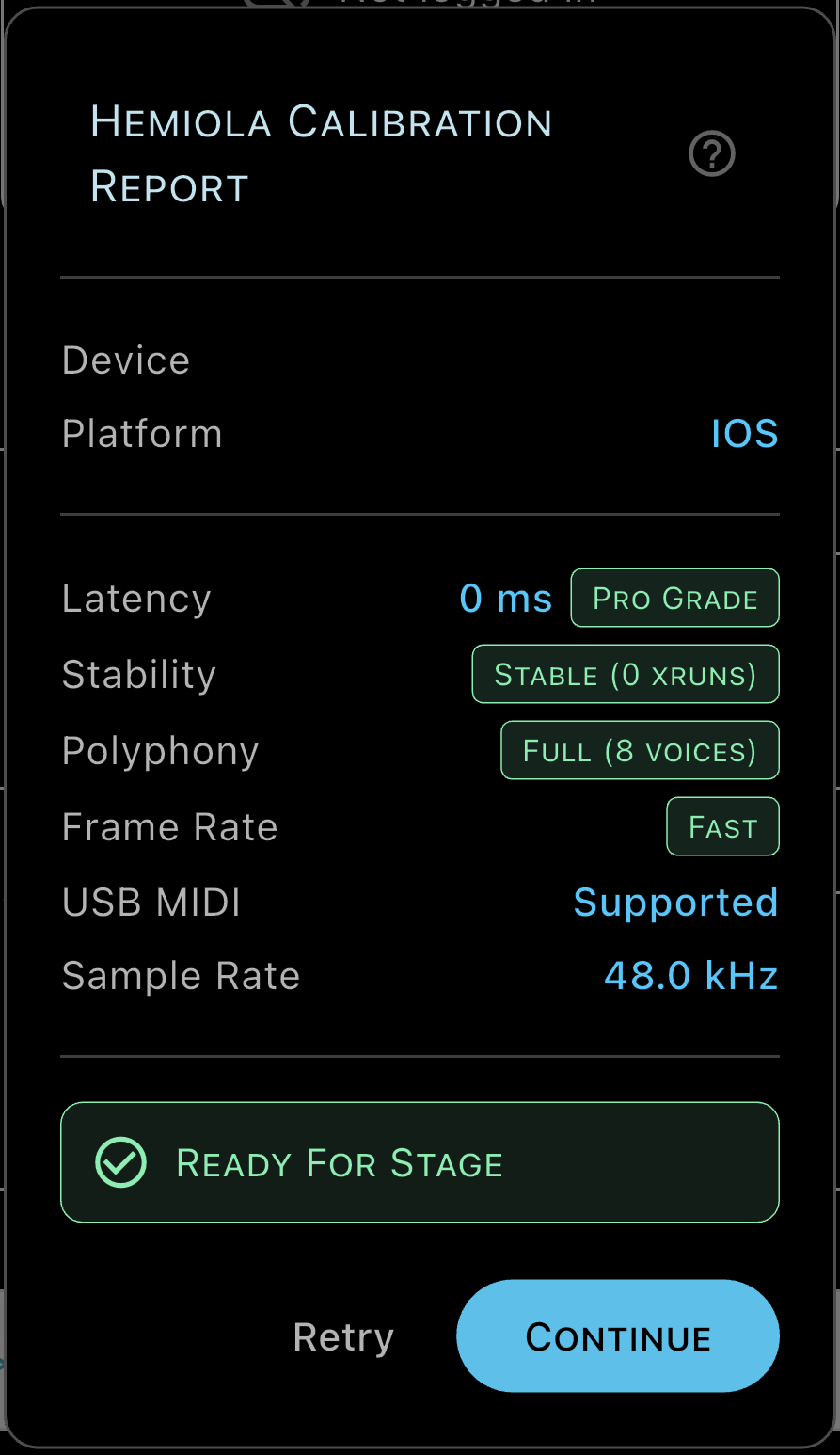
The Audio Calibration Wizard measures the round-trip audio latency of your device and evaluates the quality of your setup for live performance. It runs automatically on first launch and can be re-run at any time from Home → Calibrate.
What Is Measured
- Latency (ms): the round-trip time between a note trigger and the audible sound. Measured by playing a test tone and detecting its echo via the microphone.
- Stability: how consistent the latency is across multiple measurements. A stable setup maintains the same latency without spikes.
- Polyphony: how many simultaneous voices your device can sustain without audio glitches (XRuns). Lower-end devices may be limited to 3–5 voices.
- Native Sample Rate: the hardware output rate (typically 44.1 kHz or 48 kHz). Hemiola automatically matches this to avoid resampling, which would degrade latency.
Latency Grades
- Pro Grade (< 12 ms): transparent, suitable for live keyboard playing.
- Stable (12–25 ms): slightly noticeable at high tempos; acceptable for most users.
- Risky (> 25 ms): audible delay. Consider using wired headphones, closing background apps, or lowering the audio buffer size in Settings → Audio.
Polyphony Grades
- Full (8 voices): no restriction; all voices active.
- Reduced (5 voices): older or thermal-throttled devices. The voice cap is applied automatically.
- Limited (3 voices): performance-constrained device. Dense polyphony will be capped.
Frame Rate Tier
- Fast (P90 < 16.67 ms): the GPU/UI pipeline runs at 60 fps. All visual effects are active.
- Marginal (16.67–33 ms): roughly 30 fps. Some visual effects are automatically suppressed to protect audio performance.
- Slow (P90 ≥ 33 ms): the device cannot sustain real-time audio and full UI simultaneously. Heavy visual effects are disabled.
Frame Rate Fails: if the frame tier is Marginal or Slow, Hemiola automatically reduces visual complexity to keep audio glitch-free. Re-running calibration after a device restart often improves the result. On old and/or slow devices Hemiola might not perform correctly: try with a more recent and/or powerful device.
Calibration Report Card
After the wizard completes, a Report Card is shown with device model, platform, all grades, and a 'Ready for Stage' or 'Potential Issues' status. You can re-open this card at any time by tapping the latency tachometer on the Home screen.
If Results Are Poor: a link to the online help page is shown when critical issues are detected. Common causes include background apps competing for audio resources, a non-native sample rate, or a device with hardware limitations.
Tips for Better Results
- Use wired headphones or a USB audio interface — they bypass the internal DAC and typically halve the latency.
- Close all other apps before calibrating, especially streaming services and communication apps.
- Re-run calibration after connecting or disconnecting audio hardware — the native sample rate may change.