
Scenes
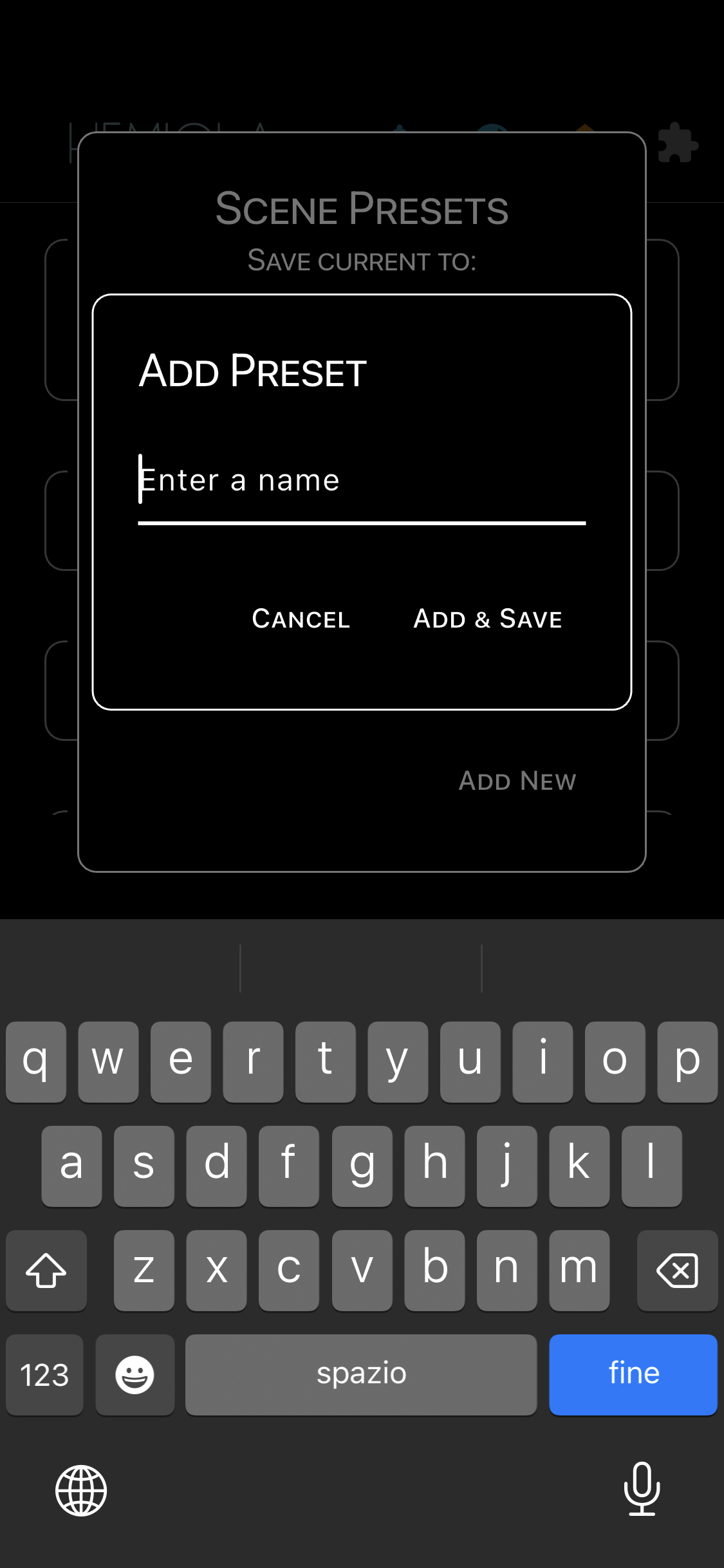
A Scene is a full-state snapshot that captures the settings of all Sound Generator sections (MAIN, SoundFont, Analog, FX) and MIDI configuration in a single preset. It is the quickest way to switch between completely different sound setups.
How to use
- Tap the theater-masks icon in the app bar to open the Scene list
- Tap a scene name to apply it immediately — all covered parameters are updated at once
- The icon turns orange when the current state differs from the saved scene (dirty); tap it to save over an existing scene or add a new one
- Add New: saves the current state as a new named scene
- Tap the edit icon next to a scene to rename it; tap the delete icon to remove it
Note
Scenes are not shared to the cloud community — they are local to your device and backed up with your regular settings backup (Cloud Pro/Premium).
What a Scene holds
- Sound Generator MAIN: master volume, pan, stereo mode, tuning, transpose, audio buffer
- SoundFont Synth: on/off, volume, pan, active SoundFont file, active patch
- Analog Synth: all oscillator, LFO, LPF, ADSR, and noise parameters
- Sound Effects: chorus, delay, reverb, and limiter settings
- MIDI: channel assignments, MIDI Thru, pitch-bend range, MIDI Mapper list
Note
Piano Keyboard settings (zoom, scroll position, pressure, haptic) are stored in separate Piano presets and are NOT included in a Scene.